
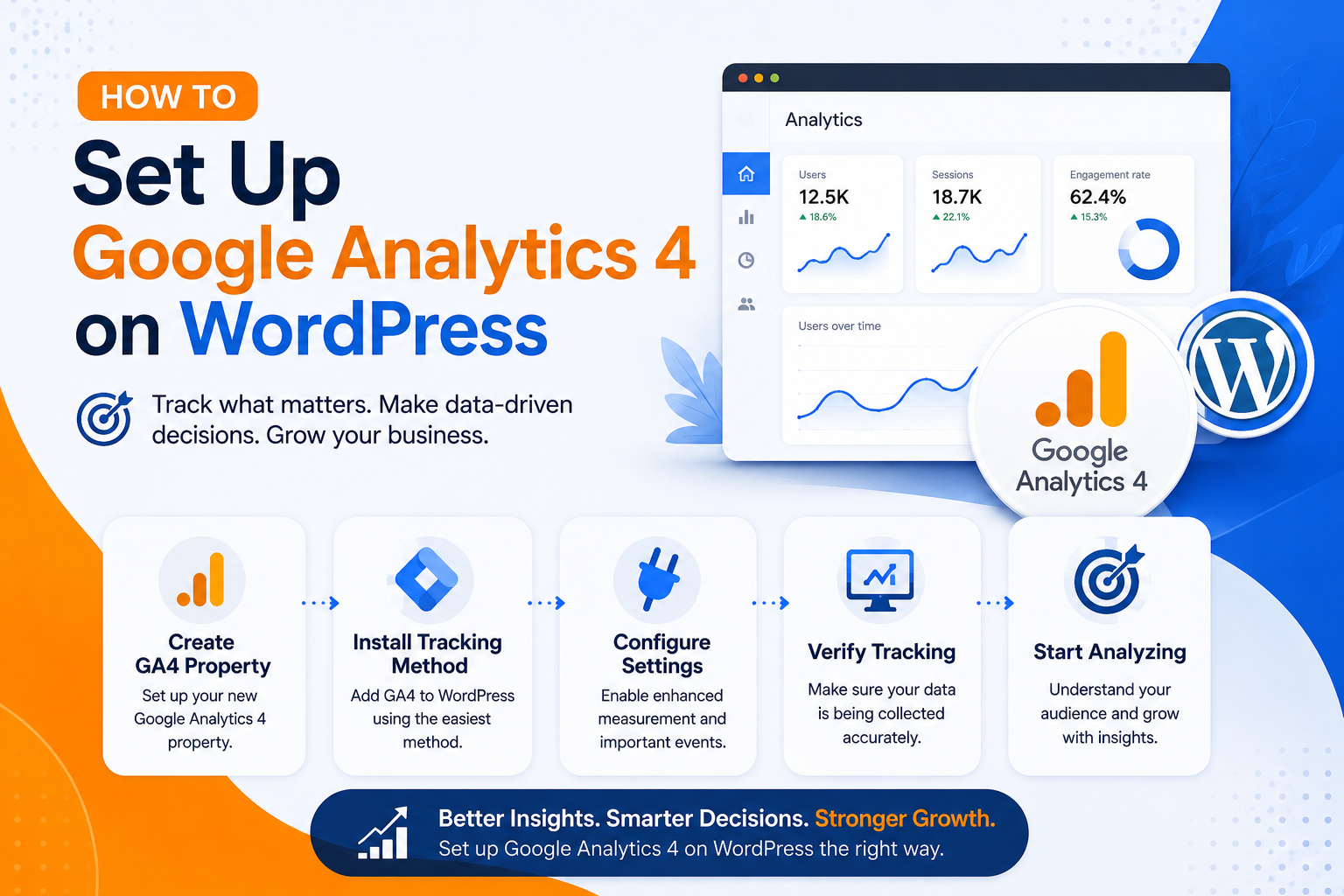
How to Set Up Google Analytics 4 on WordPress (Step-by-Step)
If you have a WordPress site and you’re not tracking visitor data, you’re flying blind. You don’t know which pages people are reading, where your traffic comes from, how long they stay, or what makes them leave. Google Analytics 4 fixes all of that — for free.
This guide walks you through setting up GA4 on WordPress from scratch. We use the method we recommend to all our clients — the Google Site Kit plugin — because it’s official, beginner-friendly, and connects your other Google tools at the same time.
By the end of this guide, your site will be tracking visitors, page views, traffic sources, and user behaviour in real time.
Before You Start — What You’ll Need
- A live WordPress site
- A Google account (Gmail works)
- Admin access to your WordPress dashboard
- 15–20 minutes
Step 1: Create Your Google Analytics Account
If you already have a Google Analytics account, skip to Step 2. If not:
- Go to analytics.google.com
- Click Start measuring
- Sign in with your Google account
- Enter an account name (your business name works)
- Click Next
Step 2: Create a GA4 Property
A “property” in Google Analytics is a container that holds your website’s data.
- Enter your property name (e.g. “Phamphe Solutions Website”)
- Set your reporting time zone — select South Africa / SAST
- Set your currency to South African Rand (ZAR)
- Click Next
- Fill in your business details (industry category and size)
- Click Create
- Accept the Terms of Service for South Africa
Step 3: Set Up a Web Data Stream
A data stream tells GA4 where to collect data from — in this case, your website.
- On the next screen, click Web
- Enter your website URL (e.g.
www.phamphesolutions.co.za) - Enter a stream name (e.g. “Phamphe Solutions – Main Site”)
- Leave Enhanced Measurement toggled ON — this automatically tracks page views, scrolls, outbound clicks, file downloads, and video engagement without any extra setup
- Click Create stream
You’ll now see your Measurement ID — it starts with G- followed by a string of numbers and letters (e.g. G-XXXXXXXXXX). Copy this and keep it handy — you’ll need it in Step 5.
Step 4: Install Google Site Kit on WordPress
<cite index=”26-1″>Using a WordPress plugin is the easiest way to add GA4 to your WordPress site, especially for beginners. Site Kit by Google is often the best option because of its user-friendly interface.</cite>
- Log in to your WordPress Admin dashboard
- Go to Plugins → Add New
- Search for “Site Kit by Google”
- Click Install Now, then Activate
Step 5: Connect Site Kit to Your Google Account
<cite index=”29-1″>Open Site Kit and click Start Setup to begin the connection process. Sign in using the same Google account that owns your GA4 property. Grant all required permissions so the plugin can access your data and complete the setup.</cite>
Here’s the flow:
- After activation, you’ll see a Site Kit welcome screen in your dashboard
- Click Start Setup
- Click Sign in with Google
- Choose the Google account where you created your GA4 property
- Click Allow to grant the required permissions
- Site Kit will ask you to verify site ownership — click Verify
Step 6: Connect Google Analytics
<cite index=”29-1″>During setup, Site Kit will ask you to connect to Google Analytics. Select Google Analytics, then choose your GA4 property and web data stream. This is the step where your website becomes fully linked to GA4. Once completed, Site Kit automatically installs the Google tag on your site.</cite>
- On the services screen, select Google Analytics
- Choose your GA4 property from the dropdown
- Select your web data stream
- Click Configure Analytics
Site Kit will automatically insert the GA4 tracking code into your site — no manual code editing required.
Step 7: Connect Google Search Console (While You’re Here)
Since you’re already in Site Kit, connect Search Console too. It takes 30 seconds and gives you keyword ranking data, click-through rates, and impression data directly in your WordPress dashboard — which is extremely useful for SEO.
- Still in Site Kit setup, select Search Console from the services list
- Select your site URL
- Click Verify
If your site isn’t already in Search Console, Site Kit will register it automatically.
Step 8: Verify Your GA4 Tracking is Working
<cite index=”28-1″>GA4 requires 24–48 hours to display initial visitor data properly.</cite> But you can verify it’s working immediately using the Realtime report:
- Go to analytics.google.com
- Select your property
- In the left menu, click Reports → Realtime
- Open your website in a new browser tab
- You should see 1 user in the last 30 minutes appear in the Realtime report
If you see yourself, GA4 is working correctly.
Step 9: Exclude Your Own Traffic (Important)
If you visit your own site regularly, your data will be skewed. Exclude your IP address from tracking:
- In GA4, go to Admin → Data Streams
- Click your web stream
- Scroll down and click Configure tag settings
- Click Define internal traffic
- Click Create and enter your IP address (Google “what is my IP” to find it)
- Save
Now go to Admin → Data Filters and activate the Internal Traffic filter.
Step 10: Set Up a Key Event (Conversion Tracking)
A “key event” in GA4 is what used to be called a “goal” in Universal Analytics. Set one up so you can track when visitors complete important actions — like submitting your contact form.
- In GA4, go to Admin → Events
- Click Create event
- Name it something clear like
contact_form_submit - Set the matching condition to trigger when your thank-you page URL is visited
- Save
- Go to Admin → Key Events and mark this event as a key event
Now GA4 will count every contact form submission as a conversion — giving you actual business data, not just page view counts.
What GA4 Reports to Check Regularly
Once your data starts flowing, focus on these reports:
| Report | Where to find it | What it tells you |
|---|---|---|
| Realtime | Reports → Realtime | Who’s on your site right now |
| Traffic acquisition | Reports → Acquisition | Where your visitors come from (organic, direct, social, referral) |
| Pages and screens | Reports → Engagement → Pages | Your most-visited pages |
| User acquisition | Reports → Acquisition | Which channels bring NEW visitors |
| Key events | Reports → Conversions | How many people are taking action |
Common GA4 Problems and Fixes
No data after 48 hours: Double-check your Measurement ID in Site Kit settings. Make sure it starts with G- not UA-. <cite index=”28-1″>Universal Analytics IDs starting with “UA-” won’t work in GA4 setup.</cite>
Duplicate tracking: <cite index=”28-1″>Multiple GA4 installations cause inflated visitor numbers. Remove old Universal Analytics codes and verify single installation only.</cite> If you previously had GA code in your theme or another plugin, remove it.
Plugin conflicts: <cite index=”28-1″>Some SEO and caching plugins interfere with proper analytics code loading. Disable plugins temporarily to identify conflicts affecting your tracking accuracy.</cite>
The Manual Method (For Developers)
If you prefer to add the tracking code manually rather than using Site Kit:
- In GA4, go to Admin → Data Streams → your stream
- Click View tag instructions → Install manually
- Copy the
gtag.jscode snippet - In WordPress, go to Appearance → Theme Editor → header.php
- Paste the code just before the closing
</head>tag - Save
We prefer the Site Kit method for client sites — it’s cleaner, easier to manage, and won’t break if the theme updates.
Wrapping Up
Setting up GA4 is not optional in 2025 — it’s the foundation of understanding whether your website is actually working for your business. With the steps above, you should have:
✅ A GA4 property collecting data
✅ Search Console connected
✅ Your own traffic excluded
✅ At least one key event tracking contact form submissions
✅ The Realtime report showing live visitors
If you got stuck anywhere in this guide or want us to set up GA4 properly on your site as part of a full SEO setup, get in touch with us — we handle this for every client site we build.
Related Articles
- 10 WordPress Plugins We Install on Every New Site
- Domains.co.za vs Bluehost: Best for SA Businesses?
Phamphe Solutions is a South African digital agency specialising in web design, WordPress development, UI/UX, and SEO. View our services.